Equipment Compare Mod Guide: Side-by-Side Tooltip Comparisons
Equipment Compare displays your currently equipped gear's tooltip right next to any item you hover over, making stat comparisons effortless. It works with armor, tools, weapons, and even accessories from mods like Curios and Trinkets. Fully client-side and highly configurable, it's an essential quality-of-life addition for any modded playthrough.
Overview
Equipment Compare is a client-side utility mod that makes gear comparison simple and intuitive. When you hover over any equippable item in your inventory while holding the comparison key (Left Shift by default), a second tooltip appears showing the stats of whatever you currently have equipped in that slot. This side-by-side display lets you instantly see whether a new find is an upgrade or a downgrade without having to memorize your current gear's stats.
Unlike many tooltip comparison mods that try to calculate stat differences and display colored numbers, Equipment Compare takes a fundamentally different approach. It simply renders the full tooltip for your equipped item alongside the hovered item's tooltip. This means it automatically supports any stats, attributes, or special information added by other mods, since it's showing real tooltips rather than trying to parse and compare individual values.
The mod requires the Iceberg library to function. It works entirely on the client side, so servers don't need it installed, and it won't affect multiplayer compatibility. You can browse any additional details using the tabs on this page.
Getting Started
- 1
Install Iceberg (Required Dependency)
Equipment Compare requires the Iceberg library mod. Download it from CurseForge and place it in your mods folder alongside Equipment Compare. Without Iceberg, the mod will not load.
- 2
Open Your Inventory and Hold Shift
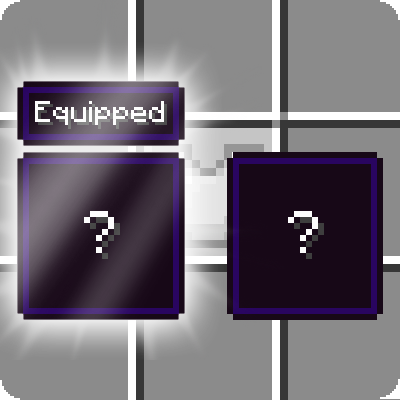
Open your inventory and equip any piece of armor or hold a tool. Now hover over another equippable item while holding Left Shift. You'll see your currently equipped item's tooltip appear to the left of the hovered item's tooltip, with an "Equipped" badge above it.
- 3
Try It with Weapons and Tools
The comparison works for items in your main hand as well. Hold a Sword, then hover over a different Sword in your inventory while pressing Shift. The mod compares damageable items in the main hand slot, so you can quickly evaluate whether that new weapon is worth switching to. Note that by default, you can compare any tool against any other tool (a Sword against an Axe, for example). If you prefer type-restricted comparisons, see the Strict Mode config option.
- 4
Customize the Keybind
If Left Shift isn't comfortable, go to Options > Controls > Key Binds and look under the Inventory section. The "Show Comparison Tooltips" keybind can be changed to any key you prefer. The keybind uses a no-conflict context, so it won't interfere with other keybinds that use the same key.
Equipment Compare is entirely client-side. You can use it on any server without the server needing the mod installed. It also means the mod has zero impact on server performance or gameplay mechanics.
How Comparisons Work
When you hover over an equippable item and activate the comparison key, the mod identifies which equipment slot that item belongs to (Helmet, Chestplate, Leggings, Boots, or Main Hand) and retrieves whatever you currently have equipped in that slot. It then renders the equipped item's full tooltip to the left of the hovered item's tooltip, with an "Equipped" badge displayed above it.
For main hand comparisons, the mod only compares damageable items. This means it won't try to compare a stack of Dirt against your equipped Sword. Both the hovered item and the equipped item need to be damageable (tools, weapons, or similar) for the comparison to trigger.
Multiple Comparison Tooltips
The mod can display up to 10 comparison tooltips simultaneously (configurable, defaults to 3). This is particularly useful when you have accessory mods installed and multiple items could occupy similar slots. Each comparison tooltip gets its own "Equipped" badge so you can tell them apart.
Anvil Screen Support
Comparisons also work on the Anvil screen. When you're combining or repairing items, you can hold the comparison key to see what you currently have equipped alongside the result, making it easy to decide if the enchantment or repair is worth the experience cost.
Accessory Mod Compatibility
Equipment Compare has built-in support for two popular accessory mods: Curios (NeoForge) and Trinkets (Fabric). When the "Compare Accessories" option is enabled in the config, the mod will also compare accessory items against whatever you have equipped in the matching Curios or Trinkets slot.
For example, if you're using Curios and hover over a Ring while holding Shift, the mod will look up all your currently equipped Curios that share the same slot type and display their tooltips for comparison. This works by checking slot tags, so any Curios-compatible item from any mod will be supported automatically. The same logic applies to Trinkets on Fabric, where slot compatibility is checked to find matching equipped items.
Note that accessory comparison is disabled by default. You need to set "compare_accessories" to true in the config file to enable it.
If you have the Legendary Tooltips mod installed (also by the same author), Equipment Compare detects it automatically and adjusts the badge positioning and tooltip height to work seamlessly with Legendary Tooltips' custom tooltip frames.
Configuration
Equipment Compare's config file is located at config/equipmentcompare.toml in your Minecraft instance folder. All settings are under the [client] section, split into visual and control options.
Control Options
The default_on option (default: false) reverses the keybind behavior. When set to true, comparison tooltips are always visible and pressing the keybind hides them instead. This is great if you always want comparisons active and only occasionally want a clean tooltip view.
The strict option (default: false) controls whether tool comparisons are type-restricted. When enabled, you can only compare a Sword to another Sword, a Pickaxe to another Pickaxe, and so on. The mod checks whether the hovered and equipped items are the same Java class. When disabled (the default), any damageable main hand item can be compared against any other.
The compare_accessories option (default: false) enables comparisons for Curios and Trinkets accessory slots. Enable this if you're running an accessory mod and want to compare Rings, Amulets, and other accessories.
The blacklist option accepts a list of item IDs to exclude from comparisons entirely. Blacklisted items won't trigger comparisons when hovered over and won't appear as equipped comparisons either. This supports Iceberg's item selector syntax, which means you can use tags, regex patterns, and other advanced selectors beyond simple item IDs.
Configuration Options
| default_on | false (hold key to show comparisons) |
| strict | false (compare any tool to any tool) |
| max_comparisons | 3 (range: 1-10) |
| compare_accessories | false (Curios/Trinkets support) |
| blacklist | [] (empty, supports Iceberg selectors) |
| override_badge_text | false |
| badge_text | "Equipped" |
Visual Options
The max_comparisons option (default: 3, range 1-10) sets how many comparison tooltips can appear at once. Increase this if you use accessory mods with many similar slots.
The badge above equipped tooltips is fully customizable. You can change its text with badge_text (set override_badge_text to true first), as well as its text color (badge_text_color), background color (badge_bg), and gradient border colors (badge_border_start and badge_border_end). All color values use ARGB format as unsigned 32-bit integers.
The badge_text setting only takes effect when override_badge_text is set to true. Without enabling the override, the mod uses its built-in translatable text ("Equipped"), which means it will automatically display in the player's language if a translation is available.
Blacklisting Items
Some modded items have extremely long or cluttered tooltips that make comparisons more confusing than helpful. The blacklist config option lets you exclude specific items from comparisons entirely. Add item IDs like "minecraft:elytra" or modded IDs like "examplemod:special_helmet" to the list.
The blacklist supports Iceberg's full item selector syntax. Beyond simple item IDs, you can use tag-based selectors, regex patterns, and other advanced matching. Check the Iceberg wiki's Item Selectors Documentation for the complete syntax reference. A blacklisted item will neither trigger a comparison when hovered nor appear as an equipped comparison tooltip.
Frequently Asked Questions
Does the server need Equipment Compare installed?
No. Equipment Compare is fully client-side. Only you need it installed. The server and other players don't need the mod at all.
Why aren't comparisons showing for my main hand items?
Main hand comparisons only work between damageable items (tools, weapons, and similar). If either the hovered item or your equipped item isn't damageable, the comparison won't appear. Also check that you're not carrying an item on your cursor, as comparisons are disabled while dragging items.
Can I compare a Sword to an Axe?
Yes, by default. The mod allows cross-type comparisons for main hand items. If you'd prefer to restrict comparisons to the same tool type only (Sword vs. Sword, Pickaxe vs. Pickaxe), enable the "strict" option in the config file.
Does Equipment Compare work with Curios and Trinkets?
Yes, but you need to enable the "compare_accessories" option in the config file (it's disabled by default). Once enabled, the mod will compare accessory items against whatever you have equipped in matching Curios (NeoForge) or Trinkets (Fabric) slots.
Can I make comparisons show automatically without holding a key?
Yes. Set "default_on" to true in the config file. This reverses the behavior so comparisons are always visible, and holding the keybind hides them instead.
What does the Iceberg dependency do?
Iceberg is a shared library mod by the same author that provides common utilities used by Equipment Compare and several other mods (like Legendary Tooltips). It handles tooltip rendering, configuration, keybind registration, and item selector parsing. Without it, Equipment Compare cannot function.