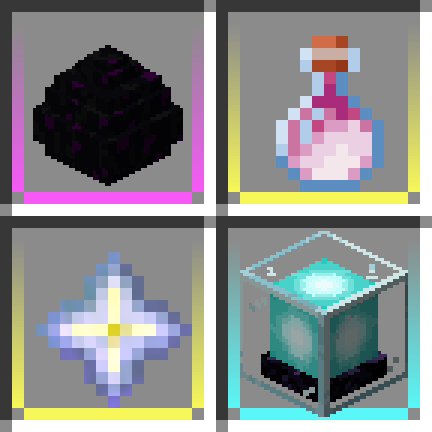
Item Borders Mod Guide: Colored Inventory Slot Borders for Rare Items
Item Borders adds colored borders around inventory slots based on item rarity, making it easy to spot your rare and valuable items at a glance. This fully client-side mod works with modded items and custom rarities, and offers extensive configuration for manual color assignments.
Overview
Item Borders is a client-side visual enhancement mod that adds colored borders around inventory slots based on item rarity. Common items like Dirt and Cobblestone remain borderless by default, while Uncommon, Rare, and Epic items get colored outlines matching their rarity tier. This makes it trivially easy to spot valuable loot in a cluttered inventory, especially when playing with large modpacks that add hundreds of items.
The mod is fully client-side, meaning it only needs to be installed on your client and works on any server without the server needing the mod. Borders appear both in inventory screens and on the hotbar. Beyond automatic rarity-based coloring, you can manually assign custom border colors to any item or tag, giving you full control over which items stand out and how.
Item Borders requires Iceberg as a library dependency, and versions 1.2+ also require Prism. Make sure both are installed before launching the game.
Getting Started
- 1
Install Dependencies
Download and install both Iceberg and Prism alongside Item Borders. All three mods go into your mods folder. Without these dependencies, the mod will not load.
- 2
Launch and Check Your Inventory
Load into a world and open your inventory. Items with Uncommon rarity or higher will already have colored borders around their slots. Common items will not show borders by default. Try picking up a Diamond Sword or an Enchanted item to see the borders in action.
- 3
Locate the Config File
The config file is located at
.minecraft/config/itemborders.toml. You can edit it with any text editor while the game is closed, or use a mod menu if available. The config controls every visual aspect of the borders. - 4
Customize Your First Manual Border
To add a custom border color, open the config and add a [client.options.manual_borders] section at the bottom. Add entries like
FCC040 = ["minecraft:diamond", "minecraft:emerald"]to give specific items a gold border. Save the file and reload the game to see your changes.
Item Borders is entirely client-side. You do not need to install it on a server, and other players do not need it installed to play with you. Only you will see the borders on your screen.
How Borders Work
By default, Item Borders uses Minecraft's built-in rarity system to determine border colors. Every item in Minecraft has a rarity: Common (white), Uncommon (yellow), Rare (aqua), or Epic (light purple). The mod reads each item's rarity and draws a matching colored border around its inventory slot. Common items are hidden by default since they make up the vast majority of items, keeping your inventory clean and easy to scan.
The border is rendered as a thin colored outline around the 16x16 pixel item slot. By default it appears as a bottom-portion gradient that fades upward, but you can enable a full border that wraps the entire slot. The border draws underneath items by default, though you can configure it to render on top. Corners are square by default, with an option for rounded corners by adjusting a single pixel on each corner.
Color Priority
When determining what color to use for a border, the mod follows a specific priority order. Manual borders (your custom color assignments in the config) take highest priority. If no manual border matches, the mod checks for embedded item data (custom NBT tags that other mods or data packs can set). Next, if automatic borders are enabled, it uses the item's rarity color from the Prism library. Finally, if Legendary Tooltips is installed and syncing is enabled, the tooltip border colors will override the automatic colors.
Configuration Options
Item Borders provides eight configuration options under the [client.options] section of the config file. Each option controls a different aspect of how borders appear.
Configuration Options
| hotbar | Show borders on hotbar slots (default: true) |
| show_for_common | Show borders on Common rarity items (default: false) |
| square_corners | Use square corners instead of rounded (default: true) |
| full_border | Border wraps entire slot, not just the bottom (default: false) |
| over_items | Draw borders on top of items instead of behind (default: false) |
| extra_glow | Thicker, more prominent glow effect (default: false) |
| auto_borders | Enable automatic rarity-based borders (default: true) |
| legendary_tooltips_sync | Sync with Legendary Tooltips border colors (default: false) |
Try enabling "full_border" and "extra_glow" together for maximum visibility. The combination makes rare items impossible to miss. If you also use Legendary Tooltips, enable "legendary_tooltips_sync" so your inventory borders match your tooltip frame colors for a cohesive visual experience.
Manual Border Colors
The manual borders system is the most powerful feature of the mod. It lets you assign specific colors to individual items, entire mod namespaces, or item tags. This is especially useful for highlighting quest items, key crafting materials, or items you always want to find quickly.
Config Format
Add a [client.options.manual_borders] section at the bottom of your itemborders.toml config file. Each entry maps a color to one or more item selectors. Colors can be specified as named colors (red, green, blue, etc.) or as hex codes (FCC040, 0xFF00FF). Selectors can be item IDs (minecraft:diamond), tags (#forge:ores), or mod namespaces.
Examples
Here are some practical manual border configurations:
[client.options.manual_borders]
    FCC040 = ["minecraft:stick", "minecraft:torch"]
    green = "#forge:ores"
    red = "minecraft:oak_planks"
    0x00FFFF = ["minecraft:diamond", "minecraft:diamond_block"]
A single item can be assigned without brackets (as shown with oak_planks above), while multiple items require square brackets and comma-separated quoted strings. Tags use the # prefix, which matches any item with that tag. This means you can highlight all ores from every mod with a single line.
While some config changes take effect after reloading the config, manual border entries and color changes typically require a game restart to fully apply. If your new manual borders aren't showing up, close and relaunch the game.
NBT-Based Custom Borders
For modpack developers and data pack creators, Item Borders supports setting custom border colors directly on items via NBT data. By adding an "itemborders_colors" compound tag inside an item's custom data, you can specify top and bottom gradient colors. This is useful for quest rewards, loot table items, or custom progression systems where specific drops should have unique visual indicators.
The NBT structure looks like: {itemborders_colors:{top:"FF0000",bottom:"00FF00"}}. This creates a gradient border that transitions from red at the top to green at the bottom. Either top or bottom can be omitted, and the other color will be used for both. This feature enables per-item gradient borders that aren't possible through the config file alone.
Mod Compatibility
Item Borders is designed to work with virtually any mod that adds items. Since it reads the standard Minecraft rarity system, any mod that properly sets item rarities will automatically get correct border colors. Custom rarities added by other mods are also supported through the Prism library's color resolution.
Legendary Tooltips Integration
If you have Legendary Tooltips installed (another mod by the same author), you can enable the "legendary_tooltips_sync" option. This makes Item Borders use the same colors as your tooltip frames, creating a unified visual theme. The mod reads the frame definition for each item from Legendary Tooltips and adjusts the saturation and brightness slightly (+30 saturation, +20 value) to make the inventory borders distinct from but complementary to the tooltip borders.
Loot Beams
The CurseForge page mentions compatibility with Loot Beams, another visual mod that adds colored beams of light to dropped items. When both mods are installed, Item Borders can synchronize its colors with Loot Beams so that the beam color on a dropped item matches the border color you see in your inventory.
Frequently Asked Questions
Do I need to install Item Borders on the server?
No. Item Borders is entirely client-side. It only needs to be installed on your client, and the server does not need it. Other players on the server will not see your borders, and the server will not be affected in any way.
Why don't I see borders on most of my items?
By default, Common rarity items (which make up the vast majority of items in Minecraft) do not show borders. This is intentional to reduce visual clutter. If you want every item to have a border, set "show_for_common" to true in the config. Otherwise, only Uncommon, Rare, and Epic items will display borders.
Can I have different colors for the top and bottom of a border?
Yes, but not through the config file. Gradient borders with separate top and bottom colors can only be set via NBT data on individual items (using the itemborders_colors compound tag). The config's manual_borders section assigns a single uniform color per item or tag. Data pack creators and modpack developers can use the NBT method to create gradient effects.
How do I use hex color codes in the config?
You can use either a 6-digit RGB hex code (like FCC040 or 0xFCC040) or an 8-digit ARGB hex code (like 0xFF00FFFF where the first two digits after 0x are alpha/transparency). You can also use named colors like red, green, blue, yellow, etc. Both formats work as the key in the manual_borders section.
Does Item Borders work with modded items and custom rarities?
Yes. Item Borders works with any modded item that uses Minecraft's standard rarity system. It also supports custom rarity tiers added by mods through the Prism library's item color resolution. If a modded item has a custom rarity with its own color, Item Borders will pick that up and display the matching border.
Can I disable automatic borders and only use manual ones?
Yes. Set "auto_borders" to false in the config. This disables all automatic rarity-based borders. Only items that match your manual_borders entries will display borders. This gives you complete control over which items have borders and what colors they use.