RFTools Power Mod Guide: Multiblock Power Storage & Energy Management
RFTools Power is an addon for the RFTools suite that provides scalable, tiered power storage through a multiblock Power Cell system. With three tiers of cells that auto-connect into networks of up to 729 blocks, it offers one of the most flexible RF storage solutions available. Browse all items and recipes using the tabs on this page.
Overview
RFTools Power is McJty's dedicated power addon for the RFTools mod family. It separates power generation and storage into its own module, giving you a clean multiblock power storage system that scales from early game all the way to massive late-game energy banks. The mod requires RFTools Base as a dependency, so make sure that's installed before you begin.
The core of the mod is the Power Cell system: three tiers of storage blocks that automatically form multiblock networks when placed adjacent to each other. A single Tier 1 Cell holds 500,000 RF, but connect dozens together and you get a combined storage pool with increasing throughput. The mod also includes an Information Screen for monitoring your network's energy levels in real time. You can browse all items and recipes using the tabs above.
Prerequisites
RFTools Power is an addon and requires RFTools Base to function. You'll also need a source of RF power from another mod (such as a Furnace Generator from Extra Utilities, a Stirling Generator from EnderIO, or similar) since the Power Cells in this version are storage blocks, not generators. The crafting recipes use standard vanilla materials like Redstone, Iron, Diamonds, and Emeralds, along with Dimensional Shards from RFTools for higher tiers.
Getting Started
- 1
Craft Power Core 1 Items
Power Cores are the essential crafting ingredient for Power Cells. Start by crafting Power Core 1 items, which require a Diamond, Redstone, and a Redstone Block. You'll need four of these for a single Tier 1 Cell, so gather materials accordingly.
- 2
Build Your First Tier 1 Power Cell
Craft a Cell 1 using four Power Core 1 items, four Redstone, and a Machine Frame (or Iron Block) in the center. Place it down and you now have 500,000 RF of storage with 250 RF/tick throughput per side.
- 3
Configure Input and Output Sides
Right-click a Power Cell with a wrench to cycle each face between three modes: None, Input, and Output. Set at least one side to Input (where your power source connects) and one side to Output (where your machines draw power). Sides set to None will not transfer energy.
- 4
Expand Into a Multiblock Network
Place additional Power Cells adjacent to your first one. They automatically form a network, pooling their energy storage. Each additional cell in the network also increases the RF/tick throughput by 25% of the base rate (configurable). You can mix different tiers in the same network.
- 5
Attach an Information Screen
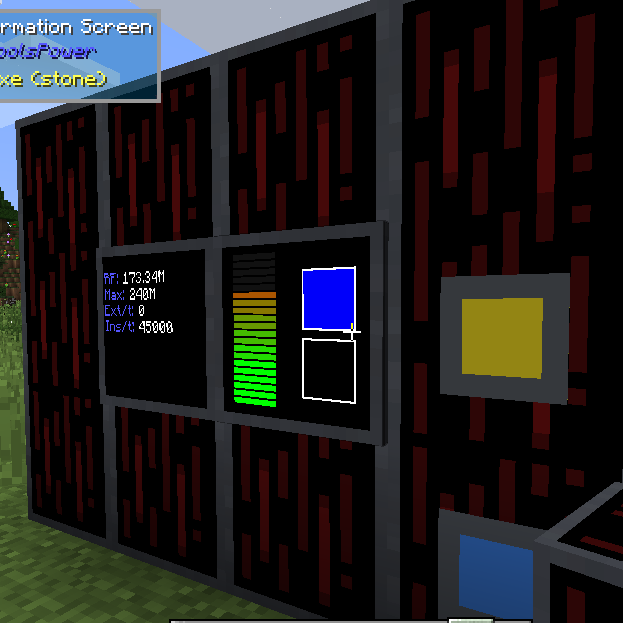
Craft an Information Screen and place it directly against a Power Cell. It displays the network's total stored energy, insertion rate, and extraction rate in real time. Right-click with a wrench to cycle between three display modes. As a bonus, it also works on any RF/FE-compatible block from other mods.
When you break a Power Cell, it retains its stored energy in the item. You can safely pick up and relocate cells without losing power. The network automatically redistributes energy evenly across remaining cells when one is removed.
Power Cell Tiers
RFTools Power offers three tiers of Power Cells, each with progressively higher storage capacity and throughput. All three tiers can be mixed within a single multiblock network, and each tier requires dedicated Power Core items as crafting ingredients.
Tier 1: Cell 1
The entry-level cell stores 500,000 RF with a base throughput of 250 RF/tick per side. It uses Power Core 1 items in its recipe, which require Diamonds and Redstone. This is your workhorse for early and mid-game storage. A single Cell 1 is enough for basic machine setups, and a small cluster of four or five cells can handle most mid-game power demands.
Tier 2: Cell 2
Cell 2 stores 4,000,000 RF (eight times Tier 1) with 1,000 RF/tick per side. Its recipe requires a Cell 1 as the center ingredient surrounded by Power Core 2 items, which use Emeralds and Dimensional Shards. This is a significant step up, suitable for powering entire machine rooms or supporting high-drain equipment.
Tier 3: Cell 3
The top-tier cell holds 20,000,000 RF with 4,000 RF/tick per side. It requires a Cell 2 as the center ingredient and Power Core 3 items, which demand both Diamonds and Emeralds alongside Dimensional Shards. A network of Tier 3 cells represents endgame storage, capable of buffering enormous quantities of RF for the most demanding setups.
Power Cell Tier Comparison
| Cell 1 (Tier 1) | Cell 2 (Tier 2) | Cell 3 (Tier 3) | |
|---|---|---|---|
| Max RF Storage | 500,000 | 4,000,000 | 20,000,000 |
| RF/tick per Side | 250 | 1,000 | 4,000 |
| Key Ingredient | Diamond | Emerald + Dimensional Shard | Diamond + Emerald + Dimensional Shard |
| Center Ingredient | Machine Frame / Iron Block | Cell 1 | Cell 2 |
Multiblock Network Mechanics
The Power Cell multiblock system is the heart of RFTools Power. When you place Power Cells adjacent to each other (touching on any face), they automatically form a single network. Energy is pooled across all cells in the network, and any cell can accept or output power for the entire pool. This means you can have your input on one side of a room and your output on the other, as long as the cells form a connected chain.
A single network supports up to 729 blocks (a 9x9x9 cube). If you exceed this limit, the network becomes invalid and stops functioning until you reduce the size. Networks automatically rebuild when cells are placed or broken, and energy is redistributed evenly across cells of the same tier when a cell is removed.
Throughput Scaling
One of the most important mechanics to understand is throughput scaling. The base RF/tick per side is multiplied as you add more cells to the network. By default, each additional cell adds 25% of the base rate to the total throughput. For example, a Tier 1 cell alone provides 250 RF/tick per side. With 5 cells in the network, each cell's effective throughput becomes 250 + (4 x 250 x 0.25) = 500 RF/tick. This means larger networks don't just store more energy; they also transfer it faster.
The maximum network size is 729 blocks by default. Exceeding this limit will display an error message and the network will stop accepting or outputting power. If you need more storage, build separate networks that aren't physically connected and use cables to link them.
Side Modes & Power Routing
Each face of a Power Cell can be set to one of three modes by right-clicking with a wrench. The mode determines how that face interacts with adjacent blocks.
In None mode, the face does not accept or output energy. This is the default for all sides when a cell is first placed. In Input mode, the face accepts RF from adjacent generators, cables, or other power sources. In Output mode, the face pushes RF into adjacent machines, cables, or other consumers. The cell actively pushes power to output faces each tick, so you don't need conduits that pull energy; just set the side to Output and connect your machine.
The visual appearance of each face changes to reflect its mode. This makes it easy to see at a glance which sides are configured for input and output without needing to check each one with a wrench. If you have The One Probe installed, looking at a cell will also show the current mode for the face you're looking at along with the effective RF/tick rate.
Information Screen
The Information Screen is a thin panel block that attaches to the face of a Power Cell. It provides a live readout of the network's energy status, updating every half second (10 ticks). It displays the total stored energy, current insertion rate (RF/tick going in), and current extraction rate (RF/tick going out). Right-clicking with a wrench cycles through three display modes.
The screen is crafted with Glass Panes, Redstone, and a Machine Base (or Iron Block). It takes up almost no space since it's only one pixel thick. As a nice bonus, the Information Screen works with any block that supports RF or Forge Energy, not just Power Cells. You can place it on generators, batteries, or machines from other mods to monitor their power levels.
The Information Screen isn't limited to Power Cells. Place one against any RF/FE-compatible block from any mod to see its energy level. This makes it a handy universal power monitor for your entire base.
Configuration Options
RFTools Power stores its configuration in the rftoolspower.cfg file inside the rftools config folder. All values can be customized to fit your modpack's balance.
The storage capacity for each tier is set with tier1MaxRF (default 500,000), tier2MaxRF (default 4,000,000), and tier3MaxRF (default 20,000,000). These can be raised up to 2 billion RF per cell. Transfer rates are controlled separately with tier1MaxRFPerTick (250), tier2MaxRFPerTick (1,000), and tier3MaxRFPerTick (4,000). The throughput scaling factor is rfPerTickScale (default 0.25), where 0 means constant throughput regardless of network size and 1 means linear scaling. The maximum network size is controlled by networkMax (default 729).
Default Configuration Values
| Tier 1 Max RF | 500,000 |
| Tier 1 RF/tick per Side | 250 |
| Tier 2 Max RF | 4,000,000 |
| Tier 2 RF/tick per Side | 1,000 |
| Tier 3 Max RF | 20,000,000 |
| Tier 3 RF/tick per Side | 4,000 |
| RF/tick Scale Factor | 0.25 |
| Max Network Size | 729 blocks |
Frequently Asked Questions
Can I mix different tiers of Power Cells in one network?
Yes. All three tiers can coexist in a single multiblock network. Each cell contributes its own storage capacity and throughput to the shared pool. Energy is distributed across cells of each tier separately, meaning Tier 3 cells in the network hold proportionally more energy than Tier 1 cells.
Why is my Power Cell not accepting or outputting energy?
Check the side modes. Every face defaults to None. Right-click each face with a wrench to set at least one side to Input (for receiving power) and one to Output (for sending power). Also verify the network hasn't exceeded the 729-block limit, which causes it to become invalid.
Do Power Cells lose energy when broken?
No. When you break a Power Cell, its stored energy is saved to the item. You can see the energy stored in the tooltip when hovering over the item. When you place it back down, the energy is restored. The network also automatically redistributes remaining energy across other cells when one is removed.
How does throughput scaling work?
Each additional cell in the network adds a percentage of the base RF/tick rate to every cell's effective throughput. With the default scale of 0.25, a Tier 1 cell in a 10-cell network gets 250 + (9 x 250 x 0.25) = 812 RF/tick per side instead of the base 250. Set rfPerTickScale to 0 in the config to disable this and keep throughput constant.
What are Dimensional Shards and where do I get them?
Dimensional Shards are a resource from the main RFTools Dimensions mod. They are found by mining in RFTools dimensions or sometimes in the Overworld and Nether. You need them for crafting Power Core 2 and Power Core 3 items, which means Tier 2 and Tier 3 cells require some progression in the broader RFTools ecosystem.
Does the Information Screen work with blocks from other mods?
Yes. While designed for Power Cells, the Information Screen can display power information for any block that supports the RF or Forge Energy capability. Place it against any compatible block and it will show stored energy levels.