RFTools Storage Mod Guide: Modular Storage, Scanners & Automated Crafting
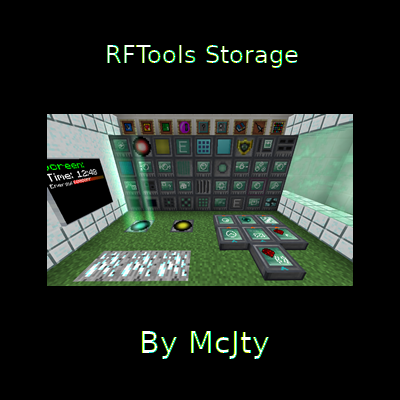
RFTools Storage is an addon for RFTools Base that provides a powerful, tiered storage system with up to 500 item slots per module. It includes the Storage Scanner for centralized inventory management, a Crafting Manager for automated crafting, and remote access capabilities through tablets and screen modules.
Overview
RFTools Storage adds a complete storage management system to Minecraft, built around two core blocks: the  Modular Storage block and the
  Storage Scanner. The Modular Storage block uses tiered Storage Modules that range from 100 to 500 item slots, storing items in a global system that persists even when modules are removed. The Storage Scanner acts as a central hub that indexes all nearby inventories, letting you search, request, and insert items across your entire base from a single interface.
The mod also includes a Crafting Manager for automated recipe processing, screen modules for monitoring inventory levels, and tablet-based remote access for managing storage on the go. Everything runs on RF power, keeping the system balanced and integrated with other tech mods. You can browse all items and recipes this mod adds using the tabs at the top of this page.
Prerequisites
RFTools Storage is an addon and requires both RFTools Base and McJtyLib to be installed. Several crafting recipes depend on the Machine Frame from RFTools Base, so you will need access to that item before building any of the major blocks. If you plan to use the XNet integration for connecting inventories over long distances, you will also need the XNet mod installed separately.
Getting Started
- 1
Craft a Machine Frame
The Machine Frame from RFTools Base is the foundation for both the
Modular Storage block and the Storage Scanner. Craft one first, as you will need it for every major block in this mod. - 2
Build a Modular Storage Block
Craft a
Modular Storage block using a Machine Frame, Redstone, Quartz, and a Chest. This block is your storage container, but it does nothing on its own. You need to insert a Storage Module into its first card slot to activate it. - 3
Craft Your First Storage Module
Start with a Tier 0 Storage Module (the cheapest), which provides 100 item slots. Craft it using a Chest, Iron Ingot, Gold Nuggets, Quartz, and Redstone. Insert it into the
Modular Storage block to start using it. Each module gets a unique UUID when first placed, and your items are stored globally tied to that UUID. - 4
Set Up a Storage Scanner
Once you have a few inventories, craft a
Storage Scanner to manage them centrally. The Scanner requires Ender Pearls, Redstone Torches, Gold Ingots, and a Machine Frame. Place it near your storage area and provide it with RF power. It will automatically detect nearby inventories and let you search, request, and insert items across all of them. - 5
Power Your System
Connect an RF power source to your
Storage Scanner. It holds up to 50,000 RF and accepts 500 RF/tick. Every item request costs 100 RF and every insertion costs 20 RF, so a modest power supply is sufficient for normal use. The Modular Storage block itself does not require power unless used with remote features.
Modular Storage System
The Modular Storage block is the heart of this mod's item storage. Unlike a regular Chest, the Modular Storage block holds items on a Storage Module card rather than in the block itself. This means you can remove the card and take your entire inventory with you, insert it into a different Modular Storage block, or upgrade to a higher-tier card without losing items.
Storage Modules
Storage Modules come in four tiers, each offering more item slots. Tier 0 holds 100 unique item stacks, Tier 1 holds 200, Tier 2 holds 300, and Tier 3 holds 500. Each module is crafted by upgrading the previous tier, so your items carry forward. The modules use NBT-preserving crafting, meaning the UUID and stored items persist through the upgrade process. Each module can only stack to 1 and gets assigned a unique identifier the first time it is placed in a Modular Storage block.
GUI Features
The Modular Storage GUI provides several organizational features. You can sort items by Name, Amount (ascending or descending), Mod, or Tag. The view supports grouping by item category, with configurable background and foreground colors for group headers. A built-in search field lets you filter items quickly. There is also a lock toggle: when locked, the storage accepts automation (hoppers, pipes) but when unlocked, it blocks external insertion and extraction to prevent accidental item loss while you are reorganizing.
Built-in Crafting Grid
Both the Modular Storage and Storage Scanner include a built-in 3x3 crafting grid. You can store up to six favorite recipes and switch between them. The crafting grid supports three modes: Ext (pull ingredients from connected inventories), Int (use only items in the current storage), and ExtC (extended crafting that chains with the Crafting Manager). The "Keep One" toggle ensures at least one of each ingredient remains in storage, preventing you from accidentally using your last materials.
Storage Module Tiers
| Tier 0 | Tier 1 | Tier 2 | Tier 3 | |
|---|---|---|---|---|
| Item Slots | 100 | 200 | 300 | 500 |
| Key Materials | Iron, Gold Nuggets | Gold Ingots, Chest | Gold Blocks, Quartz Blocks | Infused Diamond, Diamond Blocks |
| Upgrades From | N/A (base tier) | Tier 0 | Tier 1 | Tier 2 |
Items stored on a Storage Module are saved globally, not inside the block. This means if the Modular Storage block is destroyed, your items are safe on the card. You can move the card to any other Modular Storage block and access the same inventory. The module's tooltip shows how many item stacks it currently holds.
Storage Scanner
The Storage Scanner is where the mod truly shines. It scans the area around it for any block with an inventory (Chests, Barrels, Modular Storage blocks, machines from other mods) and presents them in a unified interface. You can search for any item across all connected inventories, request items to be pulled to you, and insert items into the appropriate container automatically.
Inventory Management
The left panel of the Storage Scanner GUI lists all detected inventories. You can reorder them with up/down buttons, remove unwanted ones, and mark inventories as "routable" so the scanner can interact with them. Starred inventories appear first and can be filtered separately. The right panel shows the combined contents of all routable inventories with the same sorting options available in the Modular Storage: by name, amount, mod, or tag.
Input and Output Slots
The Storage Scanner has two input slots and one output slot. Items placed in the top input slot are automatically distributed into routable inventories. The bottom slot works the same way but is intended for automation (pipes, hoppers). When you request an item from the search results, it either goes to the output slot or directly into your player inventory, depending on the "Export to current" setting. The default config sends items straight to your inventory.
XNet Integration
If XNet is installed, the Storage Scanner gains a dedicated storage channel type. This allows inventories connected via XNet cables to be detected by the scanner even if they are far away. A config option (xnetRequired) can enforce that only XNet-connected inventories are visible, disabling the default radius-based scanning entirely. This is useful for large bases where you want precise control over which inventories appear.
Storage Scanner Recipe


Click on any inventory in the Storage Scanner's list to highlight it in the world for 5 seconds (configurable). This is invaluable for identifying which Chest or machine corresponds to each entry, especially in cluttered storage rooms.
Storage Scanner Power Stats
| Max RF Storage | 50,000 RF |
| RF Input Rate | 500 RF/tick |
| RF per Item Request | 100 RF |
| RF per Item Insert | 20 RF |
| Highlight Duration | 5 seconds |
Crafting Manager
The Crafting Manager is an advanced automation block that works with the Storage Scanner to provide on-demand automated crafting. It has four device slots where you place blocks that represent crafting devices (such as a Crafting Table for vanilla recipes), and each device slot has eight Crafting Card slots for defining recipes.
How It Works
When you request an item through the Storage Scanner that is not available in any connected inventory, the system checks if any Crafting Manager can produce it. The Crafting Manager examines its Crafting Cards to find a matching recipe, pulls the required ingredients from connected inventories via the Storage Scanner, and begins crafting. The finished product is returned to the Storage Scanner's inventory network. If an ingredient is also missing, the system can chain craft by queuing additional crafting requests.
Quality and Queue System
When multiple Crafting Managers or device slots can produce the same item, the system selects the best candidate using a quality score. An idle device gets a massive quality bonus (10,000 points), a device that just finished gets a moderate bonus, and a busy device gets penalized based on its queue length. This ensures work is distributed evenly across available crafting devices and idle machines are prioritized.
Remote Access and Screen Modules
Storage Control Module
The Storage Control Module is a screen module for RFTools screens that displays up to nine item stacks from a linked Storage Scanner. Right-click the module on a Storage Scanner to link it, then place it in an RFTools screen. You can configure it to only count items in starred inventories, making it useful for monitoring specific resources. It can also be installed in a Tablet for portable access to the Storage Scanner's full interface from anywhere in the same dimension.
Dump Module
The Dump Module is another screen module that displays up to 28 ghost item slots. Link it to a Storage Scanner and configure which items to show. This module provides a quick-dump interface where you can see at a glance what you have in storage. It supports tag-based matching, so you can monitor entire categories of items (like all Ingots) rather than specific items.
Tablet Access
By placing a Storage Control Module into an RFTools Base Tablet, you gain portable access to the Storage Scanner GUI. The Tablet holds up to 20,000 RF, receives 500 RF/tick, and consumes 100 RF per use plus 100 RF extra per storage tier of any accessed module. This lets you request and insert items while away from your base, as long as you are in the same dimension (or cross-dimension with increased power cost).
The Modular Storage block has a "locked" toggle in its GUI. When unlocked, the storage card cannot be accessed by automation (pipes, hoppers, the Storage Scanner). Always lock your storage after inserting a module, or your items will be invisible to the rest of your system. The lock also updates the module's tooltip to show the current item count.
Modular Storage Recipe
Modular Storage Block


Configuration Options
RFTools Storage provides extensive configuration through its server and client config files. All RF values for the Storage Scanner, Remote Storage, and Tablet are fully adjustable, so server admins can tune the power costs to match their modpack's balance.
Key Server Settings
The xnetRequired option (default: false) forces the Storage Scanner to only detect inventories connected via XNet cables when XNet is installed. The scannerNoRestrictions option (default: false) bypasses claim protection checks, allowing the scanner to access inventories regardless of player claims. The requestStraightToInventory option (default: true) sends requested items directly to your player inventory instead of the scanner's output slot.
Client Settings
The autofocusSearch option (default: false) automatically selects the search field when opening the Modular Storage GUI. The clearSearchOnOpen option (default: true) clears any previous search query when the GUI opens. The highlight time for inventory selection in the Storage Scanner defaults to 5 seconds and can be adjusted.
Item Categories
The Modular Storage comes with a built-in item categorization system that maps Java class names to categories like Potions, Armor, Tools, Weapons, Food, Machines, and more. This is what powers the "group by category" view in the GUI. The category mappings are configurable and include support for items from many popular mods including Thermal Expansion, EnderIO, BuildCraft, and Extra Utilities.
Remote Storage & Tablet Power Stats
| Remote Storage Max RF | 100,000 RF |
| Remote Storage RF/tick | 300 RF/tick |
| Local Dimension Sharing | 10 RF/tick |
| Cross-Dimension Sharing | 50 RF/tick |
| Tablet Max RF | 20,000 RF |
| Tablet RF/tick | 500 RF/tick |
| Tablet RF per Use | 100 RF |
| Tablet Extra per Tier | 100 RF |
Frequently Asked Questions
What happens if I break the Modular Storage block?
Your items are safe. Items are stored globally on the Storage Module card, not in the block itself. Breaking the block drops the card with all items intact. Just place it in another Modular Storage block to access them again.
How do I upgrade a Storage Module without losing items?
The upgrade recipes use NBT-preserving crafting. Place your current module in the crafting grid with the required materials, and the resulting higher-tier module retains the same UUID and all stored items. You go from Tier 0 to Tier 1 to Tier 2 to Tier 3 sequentially.
Does the Storage Scanner work with inventories from other mods?
Yes. The Storage Scanner detects any block that exposes an item handler capability, which includes virtually all modded inventories (Chests, ME Systems, Drawers, modded machines, etc.). If the inventory supports the standard Forge item handler, the scanner can see it.
Can I use the Storage Scanner across dimensions?
The Storage Scanner itself only detects inventories near it in the same dimension. However, the Tablet with a Storage Control Module allows remote access to the scanner. Cross-dimension sharing uses 50 RF/tick compared to 10 RF/tick for same-dimension access.
What is the Crafting Manager's device slot for?
The four device slots accept block items that define what type of crafting the manager can perform. Place a Crafting Table to enable vanilla crafting recipes. Other mods can register their own crafting devices. Each device slot has eight Crafting Card slots below it, giving you up to 32 automated recipes per Crafting Manager.
Does RFTools Storage work with JEI?
Yes. RFTools Storage includes full JEI integration with recipe transfer handlers for both the Modular Storage and Storage Scanner crafting grids. You can click recipes in JEI to fill the crafting grid automatically, pulling ingredients from connected inventories.