Tom's Simple Storage Mod Guide: Unified Inventory Networks & Crafting Terminals
Tom's Simple Storage Mod brings a clean, vanilla-friendly storage network system to Minecraft. Connect all your Chests, Barrels, and other inventories into a single searchable system using the Inventory Connector and access everything through a Storage or Crafting Terminal. With support for wireless access, filtered connections, and Redstone integration, it offers powerful organization without the complexity of larger tech mods.
Overview
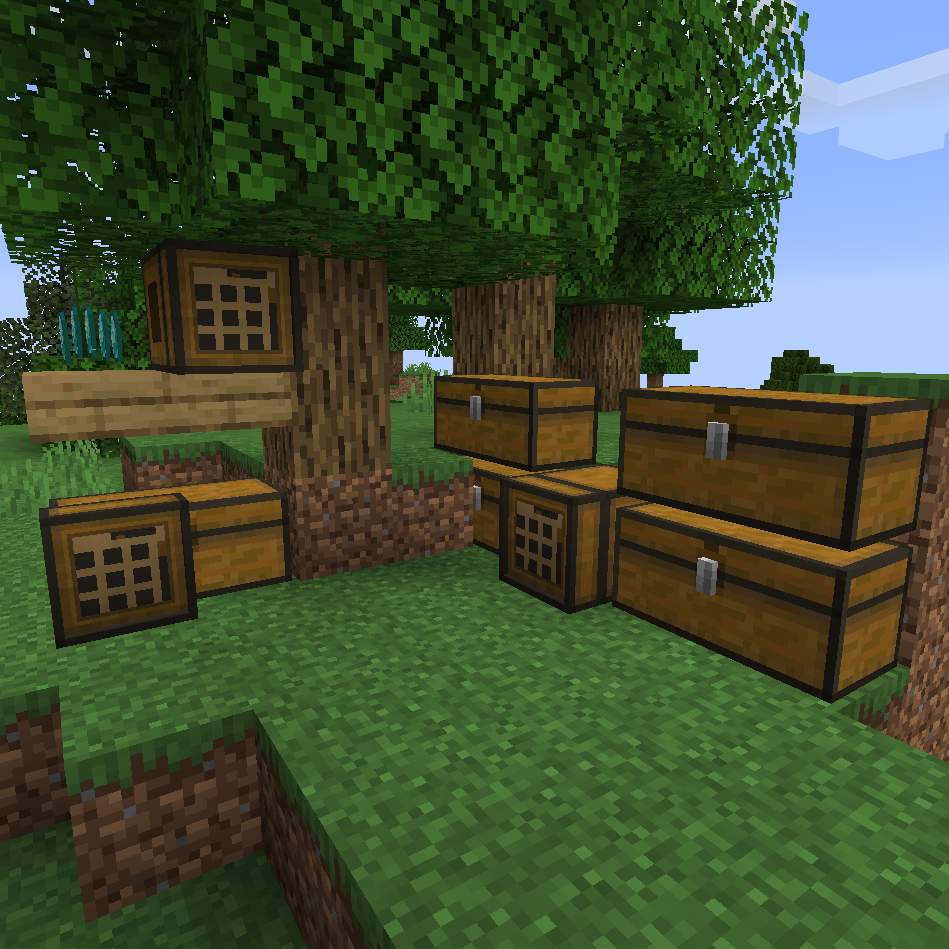
Tom's Simple Storage Mod is a lightweight storage solution that lets you unify all your inventories into a single searchable network. Instead of running around checking dozens of Chests, you place an  Inventory Connector block, surround it with your storage containers, and then access everything through a terminal. The mod stays true to Minecraft's vanilla aesthetic and crafting philosophy, using common materials like Planks, Chests, Comparators, and Diamonds.
The mod adds blocks for connecting inventories across distances using cables, filtering items, outputting Redstone signals based on stock levels, and even accessing your storage wirelessly. You can browse all the items and recipes this mod adds using the tabs at the top of this page.
Getting Started
- 1
Craft an Inventory Connector
The
Inventory Connector is the heart of your storage network. It scans all touching inventories (Chests, Barrels, Shulker Boxes, and more) and merges them into a single virtual inventory. Craft one using Planks, Comparators, Chests, a Diamond, and an Ender Pearl. Place it next to your existing storage containers. - 2
Build a Wall of Storage
Place Chests, Barrels, or any other inventory blocks so they are touching the
Inventory Connector or touching other containers that are already connected. The connector automatically detects adjacent inventories within a range of 16 blocks (configurable). Right-click the Inventory Connector to see how many slots are available in your network. - 3
Use Inventory Trim to Bridge Gaps
If your Chests don't directly touch the
Inventory Connector, place  Inventory Trim blocks in the gaps. Trims act as bridges that extend the connector's reach without adding storage slots themselves. This lets you arrange your storage room however you like instead of cramming everything into a solid cube.
 - 4
Place a Storage Terminal
Craft a Storage Terminal and place it directly on top of, beside, or underneath the
Inventory Connector (or any connected inventory). The terminal faces you when placed, similar to a Button. Right-click it to open a searchable interface showing every item across your entire network. You can sort by name or quantity and use three different control schemes (AE-like, Refined Storage-like, or vanilla-like). - 5
Upgrade to a Crafting Terminal
Once you have Diamonds to spare, upgrade your Storage Terminal to a Crafting Terminal. It has the same inventory browsing features plus a built-in 3x3 Crafting Table grid. Items from your network are pulled directly into the crafting grid, so you can craft without manually fetching materials. This is the block you'll use most often.
Core Block Recipes


The Storage Terminal and Crafting Terminal can be placed on walls, floors, and ceilings. They are thin panel-style blocks (6 pixels deep) that sit flush against surfaces, so they work great mounted on the front of your storage wall.
The Inventory Connector
The Inventory Connector is the core block of the entire mod. Every storage network needs exactly one. It automatically detects and merges all adjacent inventories (any block that implements Minecraft's inventory interface) into a single unified system. This includes Chests, Double Chests, Trapped Chests, Barrels, Shulker Boxes, Hoppers, Dispensers, Droppers, Furnaces, Brewing Stands, and any modded inventory blocks.
By default, the connector scans a 16-block radius for touching inventories. It updates its internal list every second (20 ticks), so newly placed containers appear in your terminal after a brief moment. Right-clicking the Inventory Connector shows a chat message with the number of free slots and total slots in your network, which is useful for checking if you need more storage.
There is a configuration option called "Only Allow Trims to Connect Inventories" (onlyTrims). When enabled, the connector will only recognize inventories that are bridged through Inventory Trim blocks rather than automatically grabbing every adjacent container. This is useful if you have other machines or inventories nearby that you don't want included in your network.
Terminals
Storage Terminal
The Storage Terminal is a read/write access point for your inventory network. Place it on any block that is part of the connected inventory system and right-click to open the interface. You'll see a scrollable grid of every item in the network with a search bar at the top. The terminal supports multiple search modes including standard search, auto-search (starts filtering as you type), and REI-synced search if you have Roughly Enough Items installed. Search mode persists between sessions.
Crafting Terminal
The Crafting Terminal includes everything the Storage Terminal offers plus a built-in 3x3 crafting grid. When you place items in the crafting grid, it pulls materials from the connected network. Shift-clicking the output crafts as many items as possible in one go, depositing extras back into your storage. The crafting grid contents are saved to the block, so your recipe stays loaded even if you close the interface.
A particularly useful feature is the option to pull missing crafting ingredients from the player's own inventory. This is controlled by a toggle button in the terminal GUI. When enabled (indicated by the pull mode setting with bit flag 256), the terminal checks your personal inventory for materials if the storage network runs out.
Control Schemes
Both terminals support three different control schemes that you can cycle through with a button in the GUI. AE-like controls use Shift+Right Click to pull one item and Ctrl+Shift+Right Click to transfer one item. Refined Storage-like controls use Middle Click to pull one item and Shift+Middle Click to transfer. Vanilla-like controls use Right Click to pull one and Shift+Right Click to transfer. Choose whichever feels most natural based on your experience with other storage mods.
Inventory Cables & Remote Connections
For larger bases where your storage room is far from your workshop, Inventory Cables let you extend your network over long distances. Cables connect inventories that aren't physically adjacent to the Inventory Connector. A single network supports up to 2,048 cable blocks by default (configurable). You'll need an  Inventory Cable Connector at each end to attach an inventory or terminal to the cable network.
Inventory Cable
The basic cable block that forms the backbone of remote connections. The recipe produces 6 cables at a time from Sticks, Planks, Trapdoors, and a Chest. Cables connect to each other and to Cable Connectors, forming a path back to the Inventory Connector.
Framed Inventory Cable
A paintable variant of the Inventory Cable. It functions identically but can be disguised using the  Paint Kit to match surrounding blocks, making cable runs look clean in decorated builds.
Inventory Cable Connector
This directional block bridges the cable network and an inventory or terminal. Place it so its face points at the inventory you want to connect. It requires an Iron Ingot, Planks, Inventory Cable, Chest, Ender Pearl, and Diamond to craft. Every cable branch needs a Cable Connector to interface with the storage network.
Filtered Cable Connector
An upgraded version of the Cable Connector with a 9-slot filter GUI. Right-click it to open the filter interface and place items in the slots to restrict which items can pass through. Only items matching the filter will be visible through this connection, which is useful for creating dedicated sections in your network.
Cable Recipes
 6
6The cable network has a maximum of 2,048 cable blocks by default. If you exceed this limit, connections beyond that point won't be detected. You can increase this in the config file (invConnectorMaxCables), but very large networks may impact server performance during the path-finding scan that runs every second.
Wireless Terminal
The  Wireless Terminal is a handheld item that extends your reach when interacting with terminals. By default it has a range of 16 blocks (configurable from 4 to 64). Hold the Wireless Terminal in either hand and right-click while looking at a Storage Terminal or Crafting Terminal from a distance. The terminal GUI opens as though you were standing right next to it. The item has a max stack size of 1.
When holding the Wireless Terminal, the distance check for the terminal interface is quadrupled (wirelessRange x 2, squared). This means with the default 16-block wireless range, you can interact with terminals from up to 32 blocks away when the distance check runs. This is particularly handy for large storage rooms where your crafting station is across the room from the terminal.
Wireless Terminal Recipe


Utility Blocks
Open Crate
The Open Crate is a creative automation block that converts the space in front of it into an inventory interface. Items placed into it via the inventory API (such as from a Hopper or other automation) are dropped as Item Entities in front of the block. Conversely, Item Entities sitting in front of the crate appear as items in its inventory slots. It checks for items every 5 ticks. This is useful for automation setups where you need to interact with items as entities, for example feeding them into a mob farm or using them with other mods that work with dropped items.
Inventory Proxy
The Inventory Proxy extends the face of the inventory it points at. It essentially acts as a remote access panel. When another block (like a Hopper) interacts with the proxy, it behaves as though interacting with the inventory behind it. This is invaluable for routing items into the back of machines or accessing inventories through walls.
Right-clicking the Inventory Proxy with a Diamond on any face (other than the one it points at) activates filtering mode on that side. Place a container on the filter face and fill its slots with the items you want to allow through. Empty filter slots allow any item. The item count in each filter slot sets the maximum stack size for that slot. You can also rename the filter container on an Anvil with special keys: "ignoreSize" ignores filter stack sizes, and "maxCount=N" sets a global max count for empty slots (default 64).
Basic Inventory Hopper
The Basic Inventory Hopper transfers items between two sides of your storage network or between a network and a regular inventory. It has a directional face: items move from the back (network or inventory) to the front. Right-click with an item to set a filter so only that item type is transferred. Shift-click with an empty hand to clear the filter. The hopper operates on a 10-tick cooldown (half a second) and transfers one item per cycle. It can be disabled with a Redstone signal.
Level Emitter
The Level Emitter outputs a Redstone signal based on item quantities in your storage network. Set a filter item and a count threshold, then choose whether it emits when the network has more or less than the specified amount. It connects to the cable network and checks stock levels every 10 ticks. This is perfect for automatic crafting systems or warning lights when materials run low.
Utility Block Recipes
Painting & Aesthetics
Several blocks in Tom's Simple Storage can be painted to match your build's aesthetics. The Paint Kit is a consumable item with 100 durability that lets you copy the appearance of one block onto compatible paintable blocks. Sneak+right-click a source block (like Stone Bricks or Planks) to sample its appearance, then right-click a paintable block to apply the look. The Paint Kit shows the sampled block in its tooltip.
Paintable blocks include the Painted Inventory Trim and the  Framed Inventory Cable. The Painted Trim functions identically to regular Inventory Trim but can be disguised. You can also craft regular Inventory Trim back from Painted Trim using a Water Bucket to wash off the paint. When the Paint Kit's durability runs out, it turns into a Bucket.
Paint & Trim Recipes


If you have Sodium installed for better rendering performance, you must also install Indium for Tom's Simple Storage to render correctly. The painted block models rely on Fabric's rendering API, which Sodium replaces. Indium adds back the compatibility layer needed.
Configuration
Tom's Simple Storage uses the AutoConfig system (Mod Menu compatible on Fabric). The config file is located at config/toms_storage.json. There are four settings to be aware of:
Configuration Options
| invRange | 16 (range 4-64) — Inventory Connector detection radius in blocks |
| wirelessRange | 16 (range 4-64) — Wireless Terminal reach in blocks |
| invConnectorMaxCables | 2048 (min 4) — Maximum cable blocks per network |
| onlyTrims | false — When true, only Trim blocks bridge inventories to the connector |
Network Design Tips
For a basic setup, a simple wall of Double Chests with an Inventory Connector in the center and a Crafting Terminal mounted on the front is all you need. This gives you hundreds of slots with instant searchable access. As your base grows, run Inventory Cables to satellite storage areas and attach them with Cable Connectors. Each area only needs a Cable Connector pointed at its local storage, not its own Inventory Connector.
Be careful about accidentally connecting inventories you don't want in the network. Furnaces, Hoppers, and Brewing Stands all count as inventories and will be absorbed if they touch the connector. Use the onlyTrims config option or leave air gaps between your storage and your machines. Alternatively, place machines on the opposite side of the room from the connector.
For automated sorting, combine the Basic Inventory Hopper with a Filtered Cable Connector. The Filtered Connector restricts which items are visible through that connection, while the Hopper moves items between networks or into specific inventories. This lets you build a system that auto-sorts incoming items into categorized storage sections.
“You don't need a complex tech mod to organize your storage. One Inventory Connector, a few Trims, and a Crafting Terminal can replace a dozen labeled Chests.
Frequently Asked Questions
Does Tom's Simple Storage work with modded inventories?
Yes. The Inventory Connector detects any block that implements Minecraft's standard inventory interface. This includes most modded storage blocks like Iron Chests, Storage Drawers, and similar containers. Some highly specialized blocks that use custom inventory systems may not be detected.
Why is my terminal not showing any items?
The terminal reads the inventory of the block directly behind its face. Make sure the terminal is placed on a block that is part of the connected inventory network (an Inventory Connector, a connected Chest, a Trim touching connected storage, or a Cable Connector). If there's an air gap or a non-inventory block between the terminal and the network, it won't see anything.
Can I have multiple Inventory Connectors in one network?
You should only have one Inventory Connector per network. The code includes loop detection that identifies when two connectors reference each other, and it will display a "Loop detected in your storage system" warning. Multiple connectors in the same network can cause items to appear duplicated or behave erratically.
How do I stop Furnaces and Hoppers from joining my network?
Either leave an air gap between them and any connected block, or enable the onlyTrims config option. With onlyTrims set to true, the connector only recognizes inventories bridged through Inventory Trim blocks, giving you precise control over what joins the network.
Does the Crafting Terminal keep my recipe when I close the GUI?
Yes. The Crafting Terminal saves its 3x3 crafting grid contents to NBT data on the block entity. Your recipe stays loaded between sessions and even through server restarts. Use the clear button in the GUI to empty the grid, which pushes leftover items back into the network.
Does Tom's Simple Storage work with Create mod contraptions?
Terminals work on Create contraptions if you also install the companion mod "Create Contraption Terminals." Without it, the terminals won't function when attached to moving contraptions.