Traveler's Backpack Mod Guide: Storage, Fluid Tanks & Tool Management
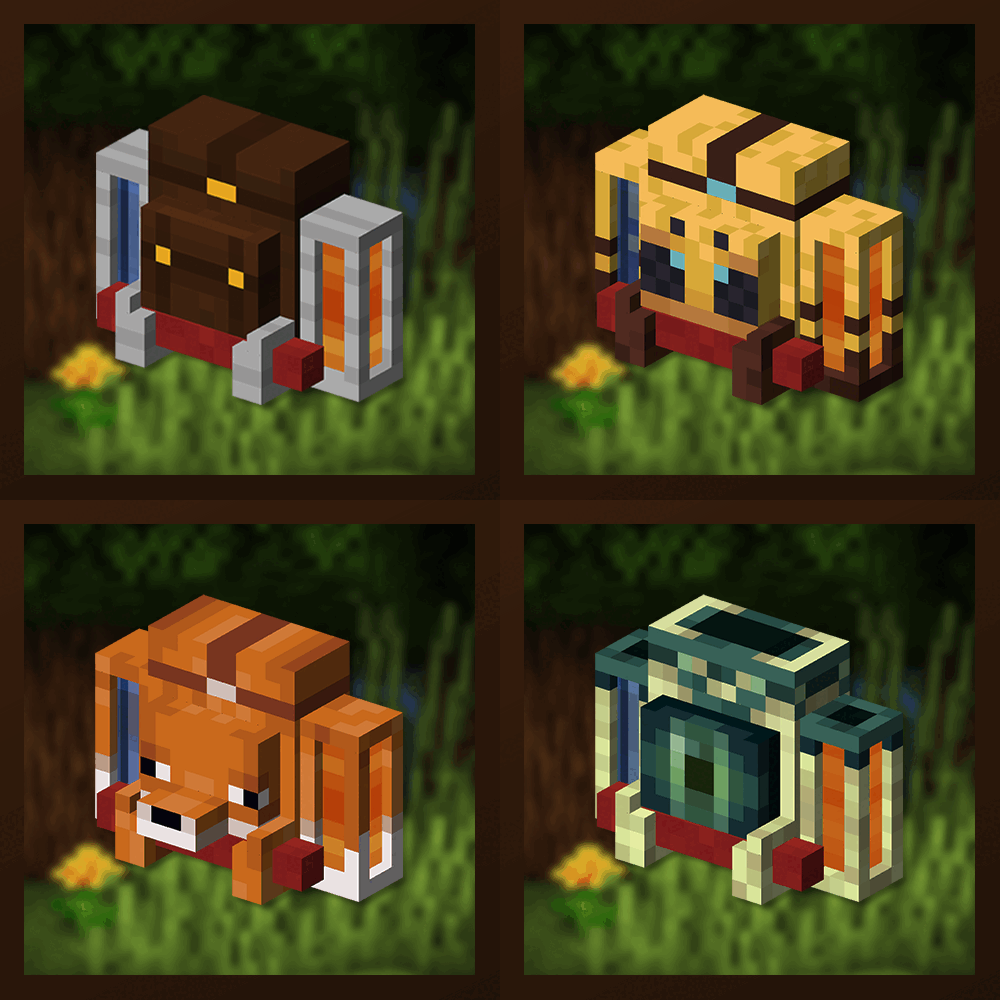
Traveler's Backpack adds a powerful, customizable backpack system to Minecraft with 39 storage slots, dual 4,000 mB fluid tanks, tool slots with quick-swap cycling, a built-in crafting grid, and a deployable Sleeping Bag. With over 45 unique backpack designs inspired by creatures and blocks, it combines practical storage with personal style.
Overview
Traveler's Backpack is a storage and utility mod that gives you a wearable backpack with 39 inventory slots, two built-in fluid tanks, a crafting grid, and two tool slots you can cycle through on the fly. The backpack renders on your character's back and can be placed in the world as a block, making it compatible with Hoppers and pipes for automation. You can browse all items and recipes the mod adds using the tabs at the top of this page.
Beyond raw storage, the mod includes a  Hose item for managing fluids, a
  Sleeping Bag for resting without resetting your spawn point, and over 45 themed backpack skins inspired by Minecraft creatures and blocks. Some of these themed backpacks even grant special abilities that can be toggled on or off. The backpack is also explosion-proof and will automatically place itself as a block when you die, sending you a chat message with the exact coordinates.
Getting Started
- 1
Craft the Components
You'll need to craft two sub-components before you can make the backpack itself: a
Sleeping Bag (3 Wool, 2 Red and 1 White, in a row) and two Backpack Tanks (8 Glass surrounding 2 Iron Ingots). These are the key ingredients that go into the final backpack recipe along with Leather, a Chest, and Gold Ingots. - 2
Craft Your First Backpack
Place 4 Leather in the corners, 2 Gold Ingots at the top-center and bottom-center, a Chest in the middle, a
Sleeping Bag at the bottom, and your two Backpack Tanks on the left and right sides. This produces the Standard Traveler's Backpack. - 3
Open and Equip the Backpack
Hold the backpack in your main hand and right-click to open the GUI. Inside, you'll see 39 storage slots, a 3x3 crafting grid, two fluid tank displays, and two tool slots. Click the "Equip" button (located on the right side above your player inventory) to wear the backpack on your back. Once equipped, press B (default keybind) to open it at any time.
- 4
Set Up Your Tool Slots
Place tools, Hoes, Fishing Rods, Shears, or Flint and Steel into the two tool slots on the left side of the GUI. While wearing the backpack, hold Shift and scroll the mouse wheel to cycle tools directly into your hand without opening the inventory. Swords can also be placed in tool slots if enabled in the config (enabled by default).
- 5
Place the Backpack in the World
While sneaking, right-click on a block to place the backpack in the world. It retains all its inventory and fluid contents. Once placed, you can access it like a Chest, and Hoppers and pipes can interact with it for item automation. Sneak and right-click a placed backpack to pick it up and wear it directly.
Crafting Recipes
The Standard Traveler's Backpack requires several crafted components. The Sleeping Bag and Backpack Tanks must be crafted first and then used as ingredients in the final backpack recipe. The backpack recipe is a custom "shaped backpack" recipe type, meaning if you craft a new variant from an existing backpack, all your stored items, fluids, and data carry over to the new one.
When you craft a themed backpack variant using an existing backpack as an ingredient, all items and fluids stored inside transfer to the new backpack automatically. You never lose your stuff when switching styles.
Backpack Inventory Layout
The backpack GUI is divided into several functional areas. The main storage area provides 39 slots arranged in two sections: a top grid of 24 slots (3 rows of 8) and a bottom grid of 15 slots (3 rows of 5). Two tool slots sit on the left side, and a full 3x3 Crafting Grid with a result slot occupies the right side of the GUI.
On either side of the backpack are the fluid tank displays, each holding up to 4,000 mB of any fluid by default. Each tank has an input and output slot for filling or emptying fluid containers like Buckets. When the backpack is worn, additional buttons appear: an Unequip button, and Empty Tank buttons on each side for quickly draining tank contents.
Backpack Specifications
| Storage Slots | 39 |
| Crafting Grid | 3x3 (9 slots + result) |
| Tool Slots | 2 |
| Fluid Tanks | 2 (left and right) |
| Tank Capacity | 4,000 mB each (configurable, min 250) |
| Fluid Container Slots | 4 (2 input + 2 output) |
| Max Stack Size | 1 |
Tool Slots and Cycling
The two tool slots accept any single-stack tool item: Pickaxes, Axes, Shovels, Hoes, Fishing Rods, Shears, and Flint and Steel. Swords are also accepted when the toolSlotsAcceptSwords config option is enabled (it is by default). Items that stack higher than 1 cannot be placed in tool slots.
While wearing the backpack, hold Shift and scroll the mouse wheel to cycle between the tools in these slots and the item currently in your main hand. Scrolling down puts your held item into the first tool slot and pulls the second slot's tool into your hand, while scrolling up does the reverse. This lets you swap between a Pickaxe and Sword instantly without opening any menu. The tools also render visually on the backpack model while worn, which can be toggled off in client settings.
Fluid Tanks and the Hose
Each backpack has two fluid tanks that can hold any Forge-compatible fluid. You can fill them by placing fluid containers (like Buckets) into the tank input slots, or by using the Hose item for direct fluid interaction with the world. The tanks are displayed as vertical bars on the left and right sides of the backpack GUI, showing the fluid type and fill level.
The Hose
The Hose is a unique gadget crafted from a  Hose Nozzle (Gold Ingot, 2 Iron Ingots, and a Lever) and 4 Green Dye. It connects to your equipped backpack's fluid tanks and operates in three modes that you cycle through by scrolling while holding it:
Suck Mode (Mode 1) picks up fluid source blocks from the world or drains fluid from tanks and machines. Right-click on a fluid source block or a fluid container to transfer up to 1,000 mB into your selected  backpack tank.
Spill Mode (Mode 2) places fluids from your backpack tank into the world or fills external tanks. Right-click on a block face to place the fluid on the adjacent block, consuming 1,000 mB from your tank. In the Nether, Water will evaporate with a sizzle effect instead of placing.
Drink Mode (Mode 3) lets you consume fluids from the tank for special effects. Right-click and hold to drink. The Hose also lets you toggle which tank it operates on (left or right) using a separate keybind.
Drinking Water in a hot biome (temperature 2.0+) extinguishes fire or grants a brief Slowness effect for 7 seconds. Drinking Lava sets you on fire for 15 seconds and grants Haste III, Fire Resistance, and Strength IV, all lasting 90 seconds. Both effects consume 1,000 mB per drink. Other mods can register custom fluid effects through the API.
Sleeping Bag
When the backpack is placed in the world as a block, a Sleeping Bag button appears in the GUI. Clicking it deploys a two-block-long Sleeping Bag extending from the front of the backpack. You can sleep in it to skip the night, and by default it does not reset your spawn point, making it perfect for exploration without losing your home base spawn. This behavior can be changed in the config if you want the Sleeping Bag to set your spawn.
The Sleeping Bag requires two clear blocks in front of the placed backpack and a solid surface beneath both blocks. It can be retracted by clicking the same button again or by breaking the backpack. The Sleeping Bag item can also be used independently of the backpack.
The Sleeping Bag deploys in the direction the backpack is facing, so make sure there are two empty blocks with solid ground beneath them in front of the backpack. If the space is blocked, the deployment will fail with an error message.
Death Protection
One of the most valuable features of Traveler's Backpack is its death protection system. When you die while wearing a backpack, the mod attempts to place it as a block near your death location. It searches in a spiral pattern up to 12 blocks out and checks multiple Y levels (up to 6 blocks above or below), looking for an empty space with a solid block underneath. If a valid spot is found, the backpack is placed there with all its contents intact.
If no valid placement spot can be found, the backpack is dropped as an item entity instead. Either way, you receive a chat message with the exact X, Y, Z coordinates of where your backpack ended up. The backpack block is also explosion-proof (it ignores all explosion damage), and backpack item entities are removed from explosion damage lists, so your items are protected even in Creeper encounters. This behavior respects the keepInventory gamerule: if keepInventory is enabled, the backpack stays on you.
Themed Backpacks and Abilities
Beyond the Standard Backpack, the mod offers over 45 themed designs inspired by Minecraft creatures, biomes, and blocks. These include designs themed after Creepers, Endermen, Villagers, Bees, and many more. The Standard backpack can also be combined with any Dye in a Crafting Table to create a custom color.
Some themed backpacks provide special abilities that can be toggled on and off using a button in the GUI or via a keybind (unbound by default). These abilities vary by backpack type and provide passive effects while worn. If any ability is overpowered or doesn't fit your modpack, each one can be individually disabled in the mod's config file.
Automation and Placement
When placed in the world, the backpack functions as a tile entity with a full inventory accessible through its GUI. Hoppers and modded pipes can insert and extract items from it, making it useful as a portable storage node in automated setups. The block has a hardness of 1.0 and effectively infinite blast resistance, so it cannot be destroyed by explosions.
The placed backpack retains all inventory, fluid, and crafting grid contents. When you break it (by punching, not by explosions), it drops as an item with all data preserved. You can also sneak and right-click a placed backpack to directly equip it onto your back, provided you aren't already wearing one.
Configuration Options
Traveler's Backpack has a range of config options split between Common (server-side) and Client settings. Understanding these can help you tailor the mod to your playstyle or server needs.
Common Settings
The enableBackpackAbilities toggle controls whether themed backpacks grant their special abilities (default: true). The backpackDeathPlace option determines whether the backpack is placed as a block on death or simply dropped as an item (default: true, places as block). You can change tanksCapacity to any value from 250 mB upward (default: 4,000 mB).
The toolSlotsAcceptSwords option lets Swords be placed in tool slots (default: true). enableLoot controls whether backpacks can spawn in loot Chests (default: true). enableSleepingBagSpawnPoint determines whether the Sleeping Bag resets your spawn point (default: false). The disableCrafting option disables the built-in 3x3 crafting grid entirely (default: false).
Client Settings
Client-side options include enableToolCycling for the Shift+Scroll tool swap (default: true), renderTools to show or hide tools on the backpack model (default: true), and renderBackpackWithElytra to control whether the backpack renders alongside an Elytra (default: true). The HUD overlay that shows tank levels and tool slots while wearing the backpack can be toggled and repositioned using the overlay settings with X and Y offsets.
Frequently Asked Questions
How do I open the backpack while wearing it?
Press B (the default keybind) to open the backpack GUI while it's equipped on your back. You can rebind this key in Minecraft's Controls menu under the Traveler's Backpack category.
Can I wear both a backpack and an Elytra at the same time?
Yes. The backpack renders alongside the Elytra by default. If this causes visual clipping, you can disable the backpack rendering with Elytra in the client config by setting renderBackpackWithElytra to false. The Elytra goes in the Chestplate slot while the backpack uses the Traveler's Backpack capability slot (or the Curios "Back" slot if Curios is installed).
Does the backpack work with Curios API?
Yes. When the Curios API mod is installed, the backpack can be equipped by placing it into the "Back" Curios slot instead of using the built-in equip button. This provides better compatibility with other mods that also use equipment slots.
What happens to my backpack when I die?
By default, the backpack automatically places itself as a block near your death location and sends you a chat message with the coordinates. It searches up to 12 blocks horizontally and 6 blocks vertically for a valid spot. If no spot is found, it drops as an item instead. This can be changed in the config by setting backpackDeathPlace to false, which makes it always drop as an item.
How do I switch the Hose between modes and tanks?
While holding the Hose, scroll the mouse wheel to cycle between Suck, Spill, and Drink modes. The current mode is shown in the item's tooltip. To switch which tank the Hose operates on (left or right), use the designated tank toggle keybind. The Hose only functions while you're wearing a backpack.
Can backpacks spawn as loot in dungeon Chests?
Yes, if the enableLoot config option is set to true (which it is by default), backpacks can appear as loot in naturally generated Chests throughout the world. This gives you a chance to find themed backpacks during exploration without crafting them.